
Leafy greens
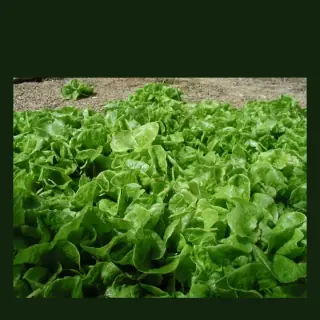
Use gentle, regular nitrogen and moisture. Overly strong feeds can burn seedlings, but hungry greens become pale and slow.
Vegetable fertilising becomes easier when you stop asking for one perfect fertiliser and start asking what the plant is trying to do: grow leaves, build roots, flower, fruit or recover.
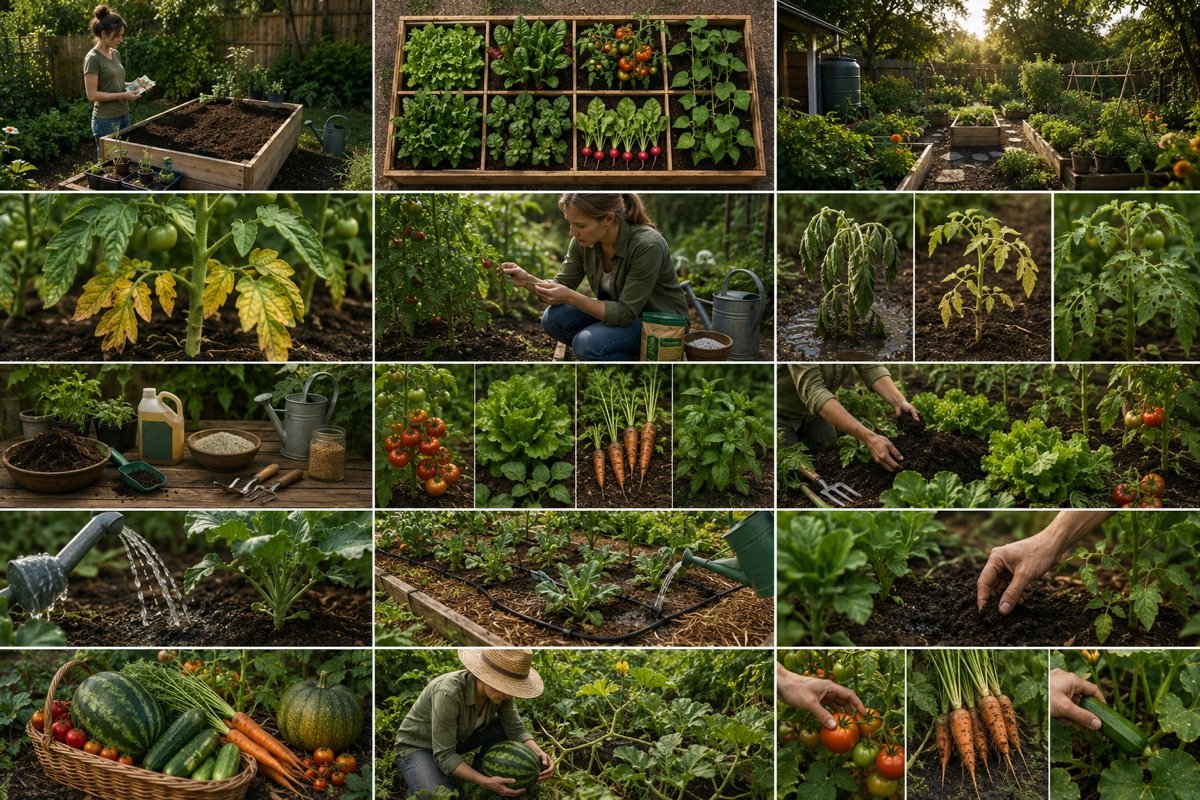
Leafy greens usually want steady nitrogen. Fruiting crops need enough nitrogen early, then balanced feeding through flowering and fruiting. Root crops are often better with improved soil than heavy late feeding. Herbs can lose flavour if pushed too hard.
Plotera stores fertiliser profiles per plant and uses the current crop, growth stage, soil notes and symptoms to suggest what to do next.
A fertiliser routine for lettuce should not be identical to one for tomatoes, carrots or herbs.
Use gentle, regular nitrogen and moisture. Overly strong feeds can burn seedlings, but hungry greens become pale and slow.
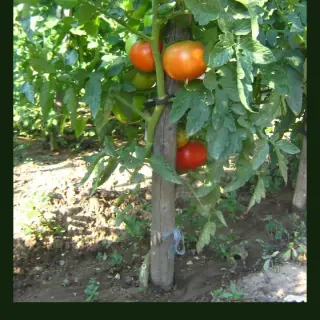
Tomatoes, capsicums, cucumbers, pumpkins and eggplants need good soil early and consistent feeding once flowering and fruiting begin.
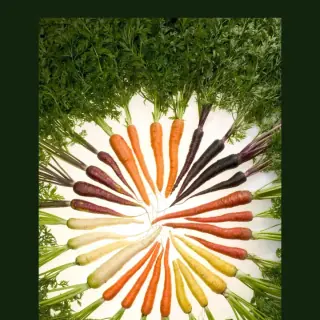
Carrots, radish, beetroot and parsnip prefer loose soil and steady growth. Too much fresh nitrogen can push leaves at the expense of roots.
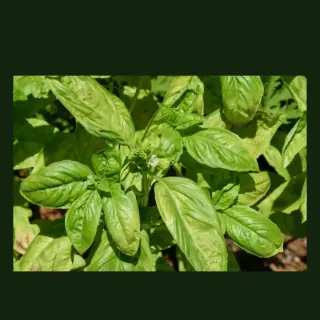
Many herbs prefer modest feeding. Too much nitrogen can make soft growth and weaker flavour, especially in Mediterranean herbs.
Pick a planted zone or crop and Plotera gives feeding guidance based on crop type, stage, soil and symptoms.
Log what was applied and when, then see past applications per garden or zone before adding more.
Keep photos, amounts and notes for the fertilisers, manures, composts and soil products you already own.
The fertiliser workflow is built to move from advice to a logged application and future reminder.
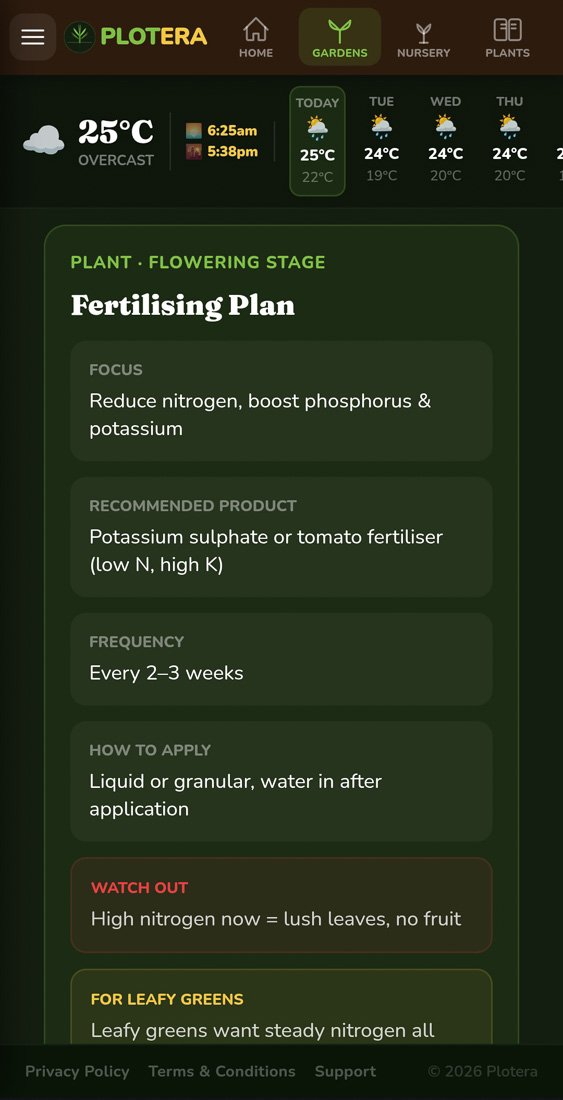
Choose a planted crop or zone and get stage-aware feeding guidance.
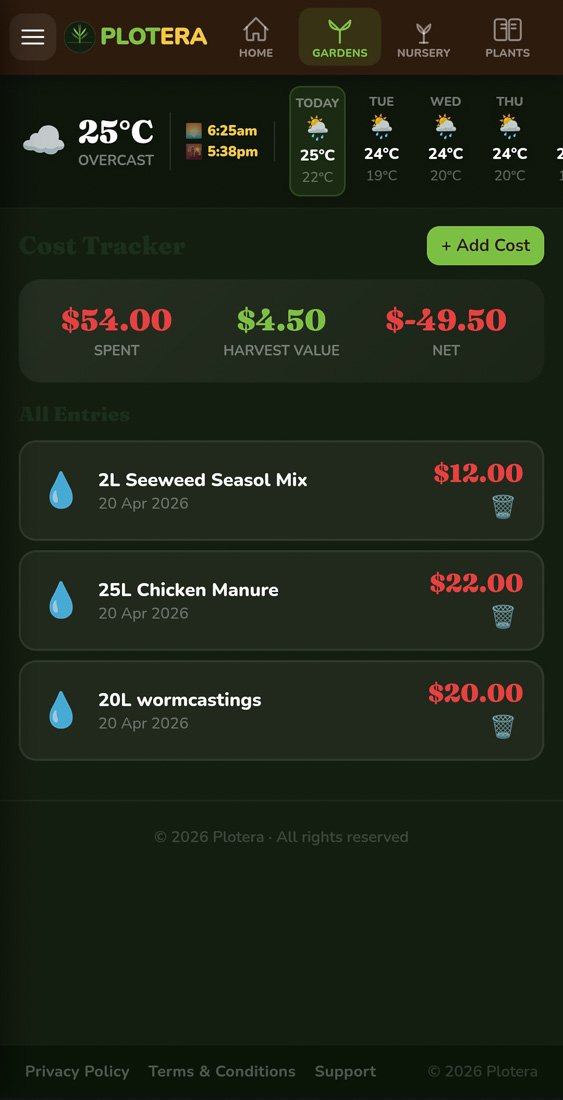
Keep garden products and costs connected to the season.
If leaves are yellowing, diagnose the cause first — read the yellow leaves guide.
Soil pH can block nutrient uptake even when fertiliser is present — see soil pH for vegetables.
A balanced organic fertiliser or compost-based routine is a good starting point, but the best choice depends on crop type, soil and growth stage. Leafy crops and fruiting crops often need different emphasis.
Yes. Overfeeding can burn roots, create soft pest-prone growth, delay fruiting or push leaves instead of roots. Start lighter than the label maximum unless you know the crop is hungry.
Plotera links fertiliser advice to the crop, stage, soil profile and past applications, then lets you log the feed so you do not accidentally double up.
Create a free account to save your garden layout, personal planting calendar, water and fertiliser schedules, seed inventory and harvest logs.
Create Free Account